Home > Working with Planning Projects > Building an Application > Building Application Models > Building A Transaction Model > Additional Definition for a Lookup Field
Additional Definition for a Lookup Field
Last Updated 3/1/2012 2:27 AM
Additional Definition for a Lookup field (Numeric or String)
We can lookup a certain value or string based on a selection from a list/droplist in the transaction model. This Lookup can be from cube model (for Numeric Lookup) or a transaction model (for String Lookup)
Numeric Lookup
Numeric Lookup function will return a value (numeric data) based on a selection of List / Dimension Droplist, against a manual list (for a single dimension lookup requirement) or a cube model.
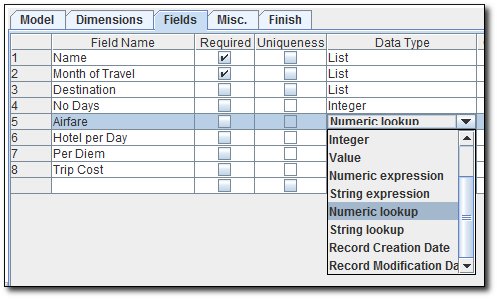
To use the Numeric Lookup function, select the "Numeric Lookup" Data Type for the field, it will then listed all the possible list/droplist that can be used as a selection filter.
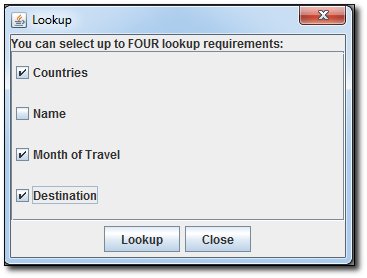
You can select up to 4 (Four) Lookup Requirements, in which only 2 of them are List type field (not the Dimension Droplist).
If you select 1 lookup requirement from the Dimension only, then it will be considered as a manual lookup (not lookup from another model)
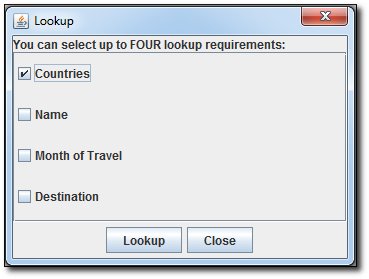
If only 1 lookup requirement is selected, then it will pop up another list table (based on the selection lookup requirement), in this example is for Countries dimension droplist :
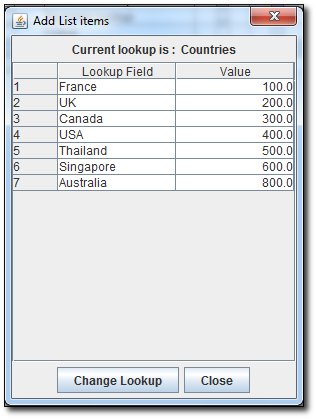
It will set the value for each countries, so then in the input grid it will show the lookup value :
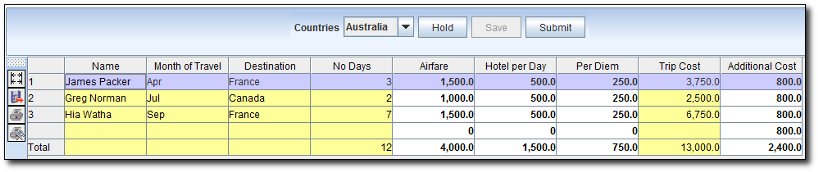
As above example, the Numeric Lookup field (Additional Cost) will give 800 for Australia (as defined in the Lookup Table)
To be able to lookup from another Cube Model, you need to select at least 1 List type Field for the Lookup Requirements (Maximum only 2 List type field is possible)
For example, we select Countries, Month of Travel , and Destination for the Lookup Requirements. Click the Lookup button, then it will ask for the Cube model as the Reference Lookup model
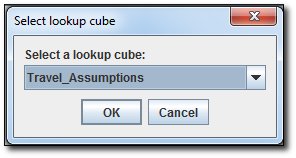
For example, we use Travel Assumptions model as the Lookup Reference model
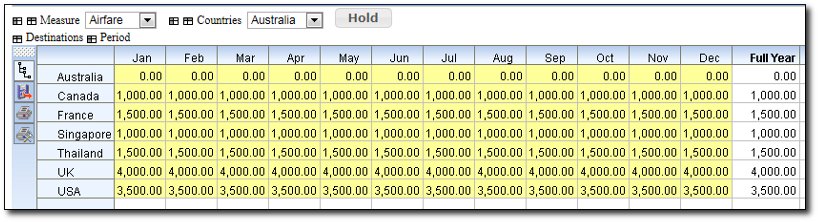
The Travel Assumptions model, has the following dimensions : Countries, Destinations.
With the measures of Airfare, Hotel per Day & per Diem.
So the Numeric Lookup Setting will be :
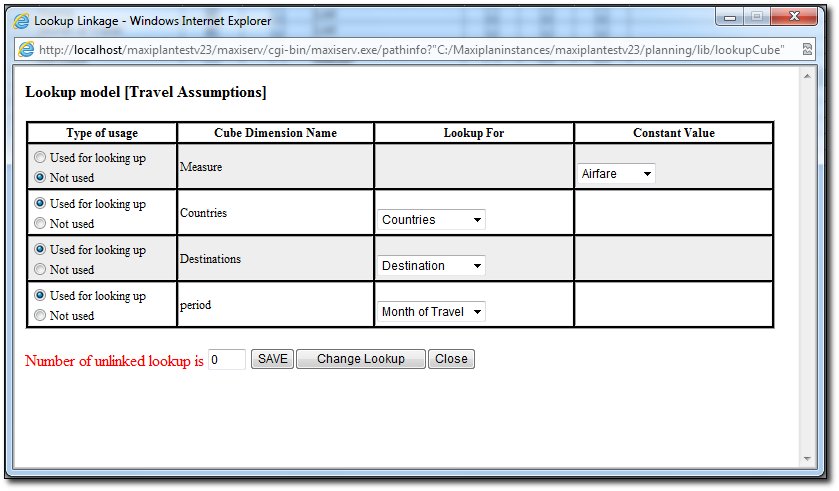
Type of Usage : Option is either Not Used (which then we need to select what is the Constant Value for the dimension), or Used for Looking Up, which we need to map the dimension on cube model to the list/droplist from the Selected Lookup requirements.
Cube Dimension Name : Dimension Name available on the Lookup Reference Cube model (including Measure, Version (if any) & Period)
Lookup For : The Selected Lookup Requirements from the Transaction model (List type field, or Dimension droplist)
Constant Value : If the Dimension from the Cube is not used in the Lookup mapping, we would need to specify which member we want to look up from
The below info will show you how many Unlinked Lookup remains, once it gets to 0, then we can save the Look up Settings.
The Result is as below :
For example above : from Country Australia, to fly to France in April, the Airfare will be 1,500, which to be same as in the Reference Lookup Cube Model (Travel Assumptions)
String Lookup
String Lookup will return a Text/String based on a selected List / Dimension Droplist against a manual list (for a single dimension lookup requirement) or another transaction model.
To use the String Lookup function, select the "String Lookup" Data Type for the field, it will then listed all the possible list/droplist that can be used as a selection filter.
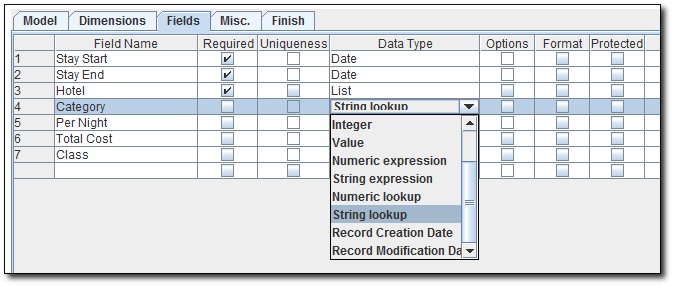 \ \
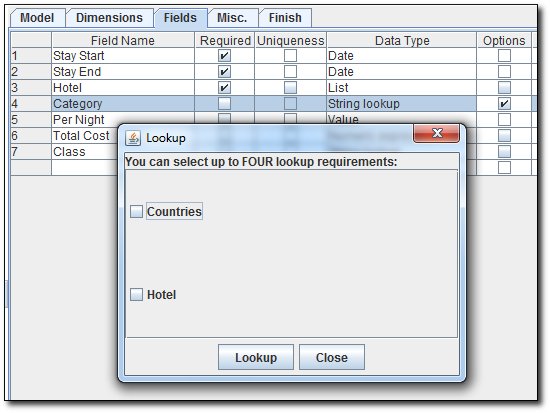
The Lookup Requirements can be from Dimension or a List type Field
You can select up to 4 (Four) Lookup Requirements, in which only 2 of them are List type field (not the Dimension Droplist).
If you select 1 lookup requirement from the Dimension only, then it will be considered as a manual lookup (not lookup from another model)
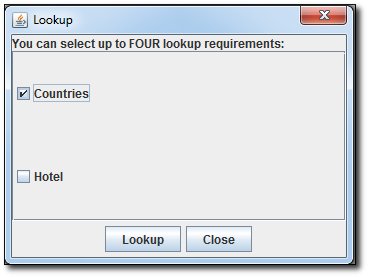
If only 1 lookup requirement is selected, then it will pop up another list table (based on the selection lookup requirement), in this example is for Countries dimension droplist :
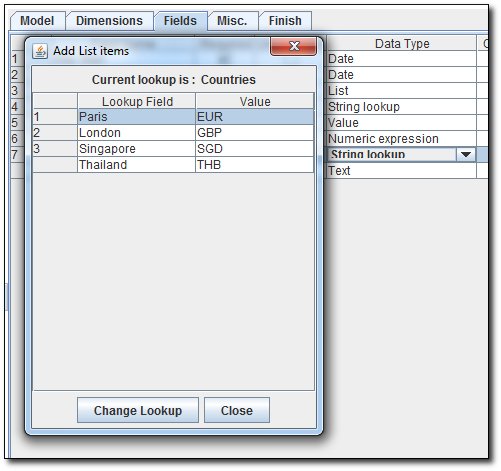
It will set the lookup text for each countries, so then in the input grid it will show the lookup value (notice the Currency field) :
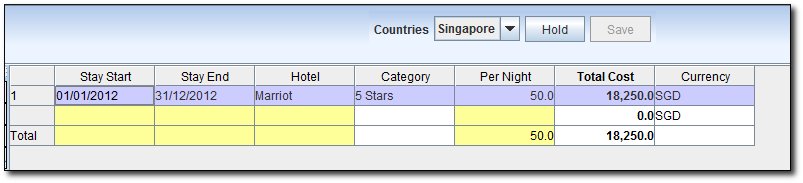
As above example, the String Lookup field (Currency) will give SGD for Singapore (as defined in the Lookup Table)
To be able to lookup from another Cube Model, you need to select at least 1 List type Field for the Lookup Requirements and up to 4 lookup requirements (Maximum only 2 List type field is possible).
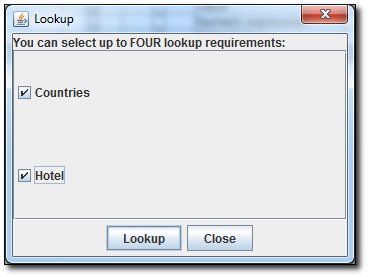
For example, we select Countries, and Hotel for the Lookup Requirements. Click the Lookup button, then it will ask for the Transaction model as the Reference Lookup model (only the Transaction model with at least 1 dimension or 1 text field type, can be chosen for the Reference Lookup model)
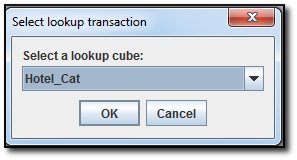
For example, we use Hotels model as the Lookup Reference model
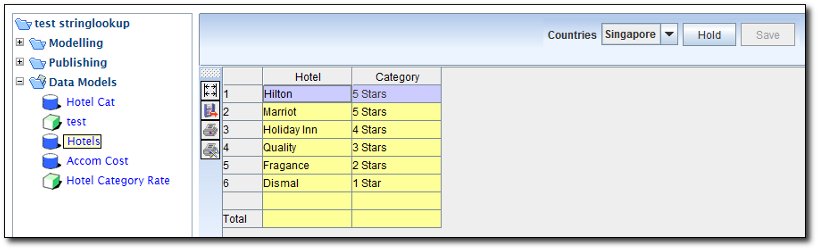
The Hotels model, has the following dimension : Countries, and the following Text Fields : Hotel, Category
So the Numeric Lookup Setting will be :
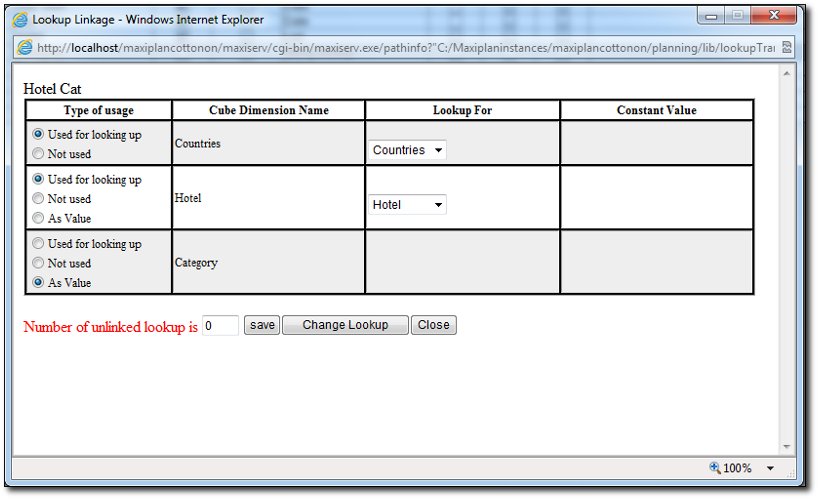
Type of Usage : Option is either Not Used (which then we need to select what is the Constant Value for the dimension), Used for Looking Up, which we need to map the dimension on cube model to the list/droplist from the Selected Lookup requirement, or As Value , which meant that the text will be used as the result of the look up.
Cube Dimension Name : Dimension Name available on the Lookup Reference Cube model (including Measure, Version (if any) & Period)
Lookup For : The Selected Lookup Requirements from the Transaction model (List type field, or Dimension droplist)
Constant Value : If the Dimension from the Cube is not used in the Lookup mapping, we would need to specify which member we want to look up from
The below info will show you how many Unlinked Lookup remains, once it gets to 0, then we can save the Look up Settings.
The Result is as below :
For example above : for Country Singapore, when we select Marriot from the Hotel List, it will return the Category of 5 Stars, based on the Hotels model.
See also
|


 Page URL: