LinkIndexPrint
Contents
 Welcome
    Ask MaxiPlan
 Using Cascade Planning
    Data Entry Shortcuts
 Working with Planning Projects
    Designing A Cascade Project
    Project Management
       Creating and Maintaining Projects
       Period Sets
       Currencies
       Creating A Splash Screen
       Allowing Other Users Access
       Backup and Restore
       Virtual Period Definition
       Deployment Alias
       Publish Documents
       Project Status
    Building an Application
       Building Application Models
          Building A Cube Model
             Basic Setup
             Selecting a Period Set
             Measure Settings
                Defining the Measures List
                Setting Measure Attributes
                Measure Formatting
                Defining Calculations for Measures
                Other Functions for Measures Editor
                Cross Referencing Measures
                   Dimension Order in Planning Models
                   Cross Referencing Within The Same Model
                   Cross Referencing to Another Model Cube
                   Cross Referencing to the Parent of the node
                Measure Logic Functions
                   PREVIOUS function
                   SUM function
                   MAX function
                   MIN function
                   DEPRECIATION function
                   INT function
                   ROUND function
                   ROUNDUP function
                   ROUNDDOWN function
                   IF Function
                   SWITCH Function
             Dimension Settings
                Defining Dimension Lists
                Defining Dimension Properties
             Miscellaneous
             Finishing The Model
             Advanced Features
                Specifying Consolidation Logic
          Building A Transaction Model
             Basic Set Up
             Defining Dimension Lists 
             Defining Transaction Model Fields
             Additional Definition for a List Field
             Additional Definition for an Expression field
             Additional Definition for a Lookup Field
             Optional Validation for Text, Date, Integer & Value Field
             Defining Field Format & Access
             Miscellaneous
       Model Flow and Linking Models
          Using Links (the 'Push' Method)
          Cross Referencing (the 'Pull' Method)
       Deployment and Workflow
          Deploying Models for Input and Review
          Allowing Users to Extend Models
          Setting up and Managing Workflow
          Workflow for Users
       Advanced Project Functions
          Measure Filters
          Jobsets
             Defining A Jobset
             Run Jobsets
          Data Integration
             Create Dynamic Model
             Import to Cube
             Import to Transaction
             Export Cube Data
          Maintenance
             Model Maintenance
             Link Maintenance
             List Maintenance
             Calculate all cubes
             Versions
          Pre/Post Rules
 Reports and Scripting
    Define Scripts
    Define Reports
    Publish Documents
    Manage Scripts


Home > Working with Planning Projects > Building an Application > Building Application Models > Building A Cube Model > Measure Settings > Other Functions for Measures Editor

Other Functions for Measures Editor
Last Updated 2/22/2012 6:40 PM


 There are other functions you can do for the Measures :

Re-Ordering Measures - The order of the measures can be changed once they have been created by using the up and down arrow icons above the measures list.

Simply select the measure you want to move up and down in the order and then select either the up arrow to move the measure up or the down arrow to move the measure down.

Renaming Measures - To change a measure name, first select the measure to be renamed so that it is highlighted, then right click in the panel containing the list of measures and select Rename from the menu.
A pop-up will display the current measure name, which you can edit and then select  to save the renamed measure.

Removing Measures - To delete a measure, first select the measure to be removed so that it is highlighted, then right click in the panel containing the list of measures and select Remove from the menu.
A confirmation pop-up will appear (this is a safety feature) and by clicking , the measure will be deleted from your measures list.

Saving a copy of the Measures list and associated logic - Once you have created your Measures, you can save a copy of the Measures and the calculations to an external text file.

Just right click the mouse on the list of Measures and when the pop-up appears, select the option to Export to File.

A dialogue box will appear for you to provide the name of the file you wish to save to.
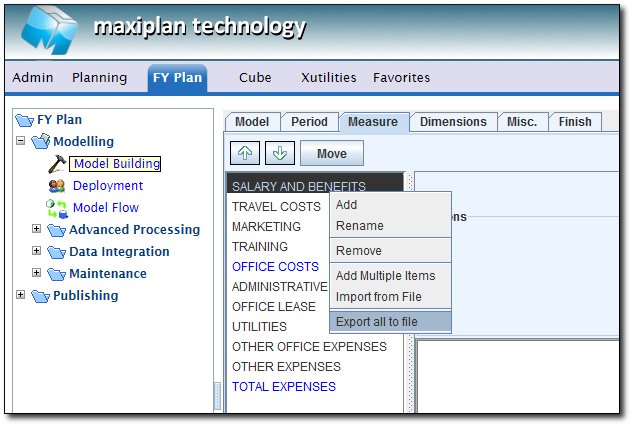


The Measures list and the logic will be saved in a comma delimited format, so you should add the .csv file extension to the name of the file you choose.

In the example below, we have chosen to save the file in the MyDocuments  folder as a file called ExpenseMeasures.csv.
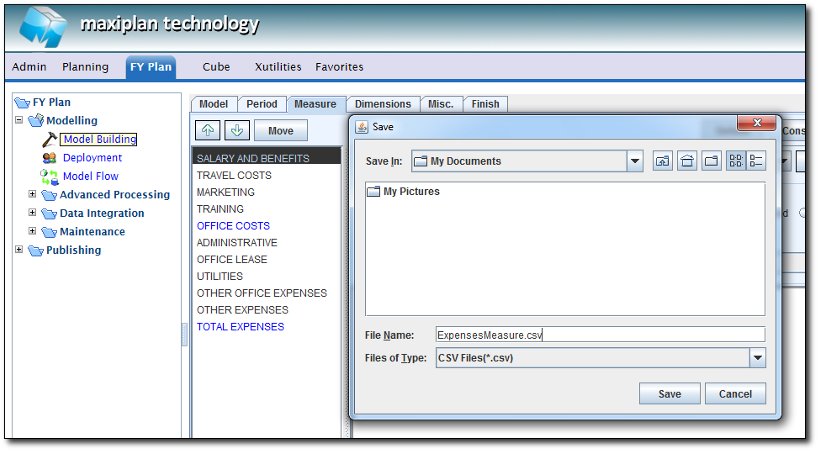


The benefit of exporting a copy of the Measures list and Logic in this way is that should you need to build another model using the same logic, you can simply import from the saved file.

Importing the Measures List and Logic - Similarly, we can import a list of measures and calculations using the Import from File capability.

Once again, all we need to do is right click the mouse on the Measures list window and select Import from File, and when we are prompted for the file name, we enter the name of the file containing the Measure List and Logic.

You can import into an empty measures list or if you import into an existing measures list, the imported measures will overwrite any already existing measures.


See also