Home > Working with Planning Projects > Project Management > Period Sets
Period Sets
Last Updated 5/28/2012 12:15 PM
A Period Set is usually a time related dimension commonly used in budgeting models. It normally has periods and period aggregations. For example, we may have a 2009 calendar period set comprising the months January to December with a full year total. Because typically period sets are common across an organisation, these only need to be defined once and then can be used by all projects, so that all projects have consistency. We refer to these as global period sets.
However you can also create period sets that are local to the project in which they are created. A local period set only exists for the project in which it was created.
A period set can define any periodicity and can incorporate mixed periodicities, for example we may have 12 months for the budget year, 4 quarters for the budget year 1 and then a year for each of budget year 2, 3 and 4. If required, we could even define daily data for the year with weekly and annual totals.
Periods sets are usually created and maintained by the Planning Administrator if they are global or by the project owner if they are local.
When Planning is first installed, a number of sample default period sets (global) are provided but you may create additional period sets as required. If you wish you can also delete the sample default sets provided (but be careful they are not being used by any of your other Planning projects).
TIP: If you have created a project and used global period sets and wish to make them local period sets, use the backup facility to backup the project and then restore it as local.
To access the Period Set maintenance screen for global period sets, select Planning>System Common>Period Set from the Planning tab.
For local period sets, select [project name]>Modelling>Maintenance>Period Set from within the projects navigation menu.
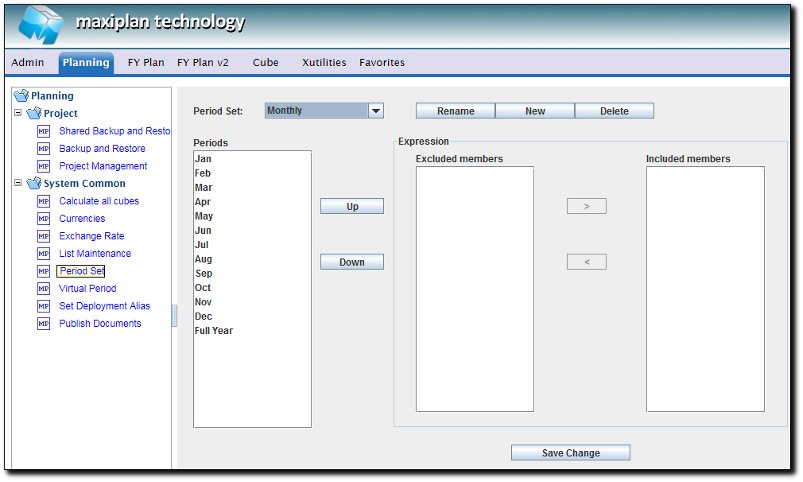
The Period Set dropdown list allows you to select the period set you wish to maintain.
To the right of the Period Set name are three buttons:
RENAME Selecting this option allows you to rename the currently selected Period Set. If you select this option, a pop-up will appear into which you can enter the new name for the Period Set.
NEW Selecting this option enables you to create a new Period Set. See below for an example of creating a new Period Set.
DELETE Selecting this option allows you to delete the currently selected Period Set.
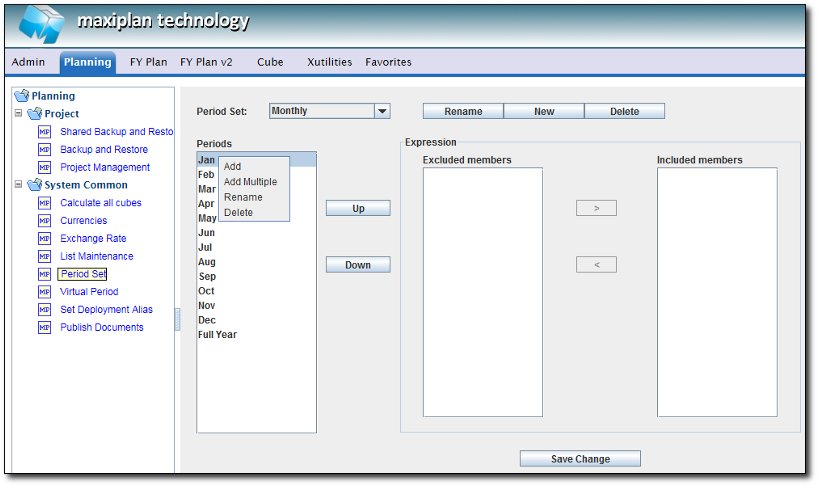
On the left hand side of the Period Set maintenance screen is a window showing the current members of the Period Set. You can add, rename and delete members by right clicking the mouse. If no member is currently selected when you right click then the only available option will be ' Add New Members'.
If you first select a member (by left clicking on the member you wish to select), then the option to rename and delete will also be available.
The options are as follows:
- ADD - Add a single member. A pop-up will appear into which you can enter the member name.
- ADD MULTIPLE - Add multiple members. Choose this option if you want to add several new members.
- RENAME - Rename currently selected member. Choose this option if you need to change the name of the member.
- DELETE - Delete the currently selected member. Choose this option if you wish to delete the currently selected member. Use the CTRL left mouse or SHIFT left mouse to select multiple items to delete.
To change the period aggregation for the period set, first select the Period Set member you wish to define aggregation for. Then using the > and < icons, specify the included or excluded members.
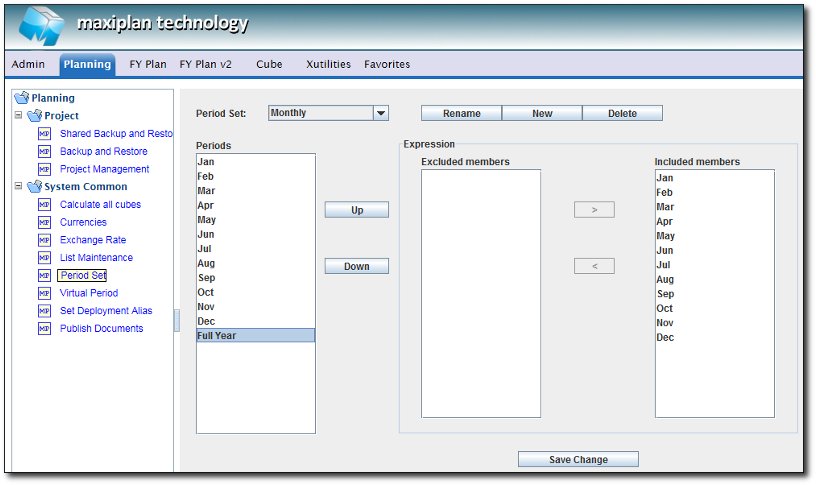
After you have defined all the summations for the period set, you must click the  button to ensure your changes are updated back to the server. button to ensure your changes are updated back to the server.
See also
Creating and Maintaining Projects
Currencies
Creating A Splash Screen
Allowing Other Users Access
Backup and Restore
Virtual Period Definition
Deployment Alias
Publish Documents
Project Status
| 


 Page URL: