Home > Working with Planning Projects > Project Management > Backup and Restore
Backup and Restore
Last Updated 5/28/2012 12:36 PM
Backup and Restore can be used to create a portable backup copy of a project or to restore a previously backed up project. Creating a backup of your project means that if required you can restore the project at a particular point in time. It also provides a flexible means of transporting a project from one computer to another.
It is important to be aware that the backup/restore process relies heavily on Cascade Planning's internal naming process and as such only one restore backup/restore process should be operated at a time. For this reason, access to the Backup/Restore functionality is restricted to those users who have been granted access to Planning application for the MaxiPlan system.
There are 2 type of Backup and Restore :
- Shared Backup and Restore : Located under {maxiplan instance}\maxiplandata\backup, only available for User with Administrator rights, which will be able to see all the projects in the instance.
- Local Backup and Restore : Located under {maxiplan instance}\maxiplandata\{User ID of the user}\backup, available to user with access to Planning application, which can only see the backup for their own project.
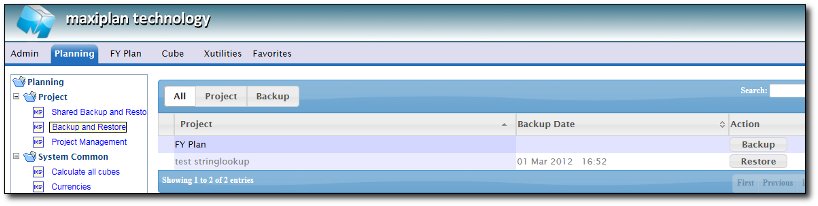
The Backup and Restore functions are accessed by selecting Planning> Project> Shared Backup and Restore(for the Global Projects) from the Planning tab.
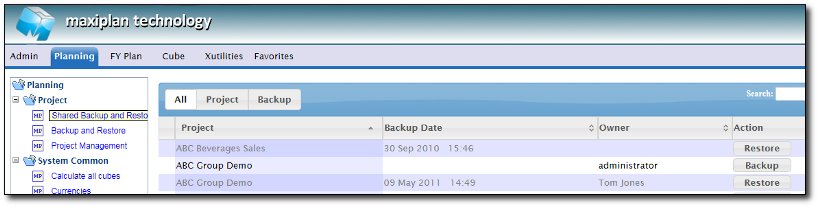
or by selecting Planning> Project > Backup and Restore (for Individual project) from the Planning Tab
Backing Up a Project
The Backup and Restore option displays a list of the available projects and next to each project a  button is displayed. button is displayed.
Only one project may be backed up at a time.
Click the button next to the project you wish to backup, and it will start the Backup process, during the process the log of the backup will be displayed.
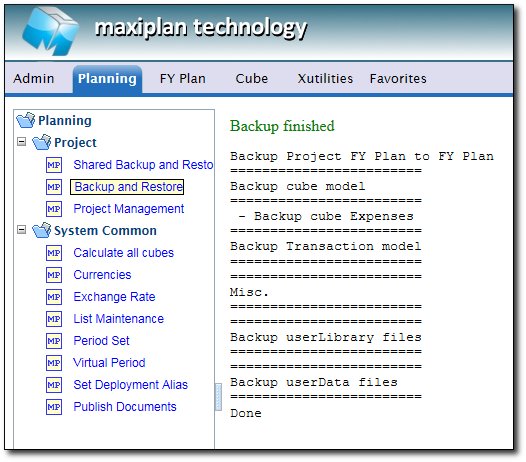
The log indicates the models and linkages that have been saved for both Cube and Transaction models.
Backup creates a folder in the backup directory (depend on the type of the Backup and Restore) on the server which will contain the backup. The folder name contains the name of project and the date & time stamp. For example, if the project name is 'ABC Company', and the date of backup is 13/04/2012 12:00PM then the backup folder name would be 'ABC Company-20120413-1200'
The backup folder created will contain the following:
Exchange Rate MXD files - one or more MXD files will be stored containing the exchange rate tables used for the application.
Cube Model CSV files - a comma delimited file containing the data for each cube model. Note that these CSV files will have an internally generated file name such as 'M00000014.csv'.
Cube Model MXD files - the mxd containing data for the Cube models.
Project Splash Page HTM file - if you have defined a splash page for the project, the HTML file for this will be saved in the folder.
Backup INI file - a file name with the .ini extension will be created containing the structure necessary for the Restore function to recreate the models and linkages.
UserData folder - the UserData folder from the project (located under maxiplandata\{User ID of the project owner}\{Project Name}\UserData, usually containing logs, and parameter file
UserLibrary folder - the UserLIbrary folder from the project (located under maxiplandata\{User ID of the project owner}\{Project Name}\UserLibrary, usually containing scripts or reports
CSV used in the import to transaction model - All the CSV file used to import data to transaction model
If you wish to transport the backup for use on another server, it is recommended that you zip or archive the complete folder and its contents into a zip format using a compressed windows folder or a compression tool such as 7Zip or WinZip. This will enable you to transport the backup in a single compressed file which can be unpacked on the server you are transferring the backup to.
What's Does Backup Include in the Backup Folder?
Backup includes the following in each backup:
- All Cube Model definitions AND data
- All Transaction Model definitions AND data
- Import definitions
- Jobset definitions
- Project Period Set used for the model
- Currency Exchange tables used
- Scripts
- Reports
- Pre and Post Rules definitions
- CSV source file for Import to Transaction model
Backup does not include the following (at present):
- Comment data for Cube Models
- Links to and from other Projects
- Deployment details
With the exception of Deployment details, the items above will be incorporated into a future release, but for now you must transfer these items separately from the backup. Deployment details cannot be included in the backup because when a project is installed on a different server, the registered users may not exist or may be different and the restore process would be unable to restore the deployment correctly.
Restoring a Project
To restore a project go to Planning> Project> Backup and Restore (or Shared Backup and Restore) from the Planning tab, as you would for Backup.
Each backup of a project will be listed down (if they have the same project name & project owner). each backup will have date & time associated with it, so that the project administrator will be able to tell which backup that can be restored.
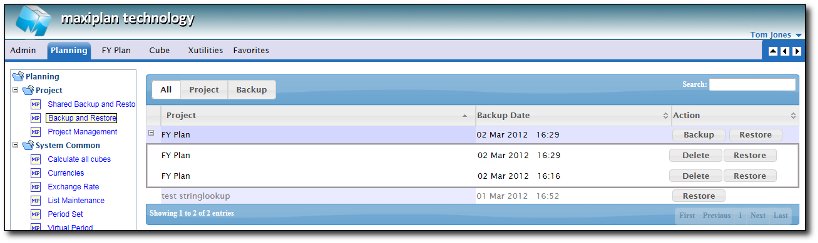
Click on the Restore button
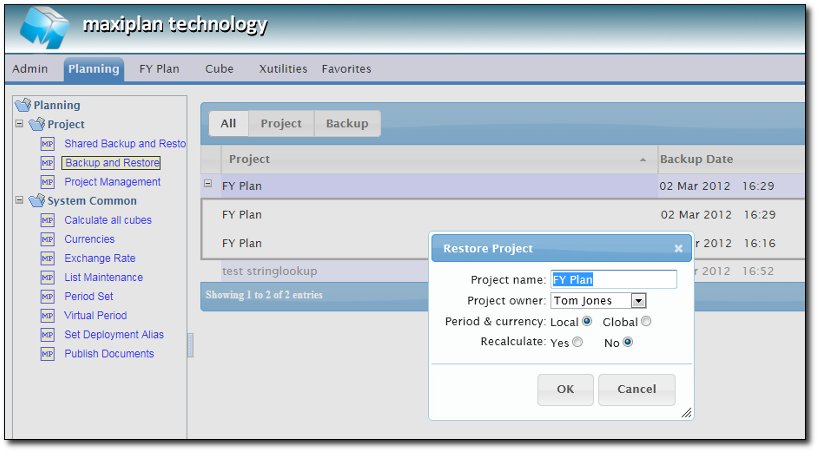
A popup screen will be displayed with the following options :
- the name for Restored Project
- Who will be the Project Owner (can be anyone)
- Whether the Period & Currency is restored as Local System Common, or as Global System Common
- Whether it needs to be recalculated or not.
Clicking  will restore the project. Clicking will restore the project. Clicking  will abandon the restore operation. Please not that depending on the size and complexity of the project, the restore process can take a little while to complete. will abandon the restore operation. Please not that depending on the size and complexity of the project, the restore process can take a little while to complete.
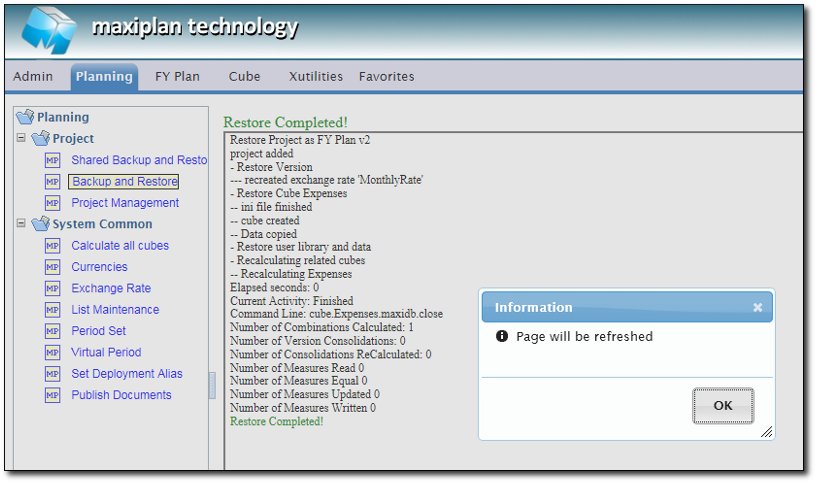
Let's example we give the project name as FY Plan 2, it will then start to restore all the data in the project, by providing a log as each model and each linkage is reconstructed. After the process completed, it will pop up a message to Refresh the Browser, so that we can see the newly restored project
Exchange Rate Considerations When Using Global Restore
Because Global System Common are shared across multiple projects, the Global Restore process will not overwrite an existing exchange rate for a period set if that period set already exists. If however the period set does not exist, the Global Restore will create the period set and will load the exchange rate set for the period set from the backup.
For an instance that may have lots of project, it's recommended to Restore Locally, so that it won't impact any other projects that may use the Global System Common
See also
| 


 Page URL: