Home > Working with Planning Projects > Project Management > Publish Documents
Publish Documents
Last Updated 5/28/2012 12:37 PM
Users are allowed to publish documents on Maxiplan and restrict which fellow users are able to access the published contents.
Supported file extensions include .csv, .txt, .mxa, .pdf, .xls, .doc etc. Only alphanumeric characters are supported for the filename and no spaces are allowed.
Publishing documents can be done by navigating to either of the 2 locations listed below.
Planning>System Common>Publish Documents
{project name}>Publishing>Publish Documents
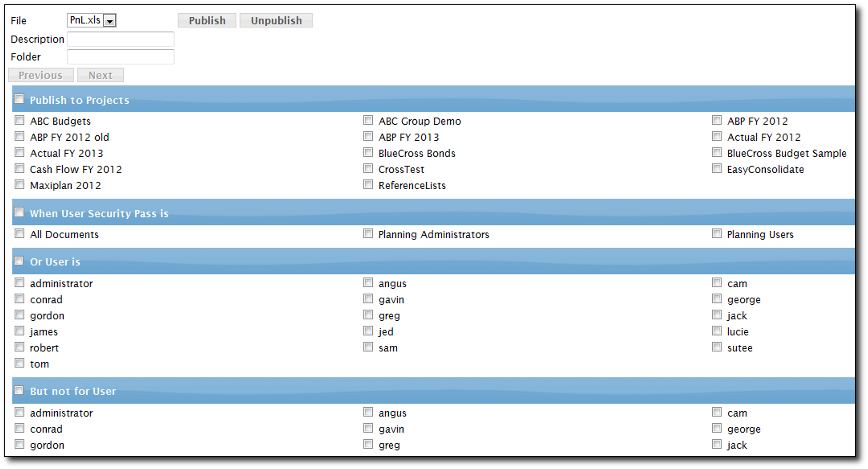
Planning>System Common>Publish Documents
The source directory is located at maxiplandata\userlibrary\api. Place files to be published in this directory.
{project name}>Publishing>Publish Documents
The source directories are located at maxiplandata\Uxxx\userdata\{project name} and maxiplandata\Uxxx\userlibrary\{project name}.
Using Publish Documents function
Documents can be published to projects for specified security passes and users.
Description
Enter a short description or an alias for the file into the text box to the right of it.
Folder
Define the Folder which the file will reside in the project into the text box to the right of it.
Publish to Projects
All projects created in the maxiplan instance will be listed in this section.
Tick on the checkbox on the left of each project name to allow the document to be published in them. Ticking on the checkbox next to Publish to Projects will automatically tick the checkboxes for all projects.
For the document to be published, it is compulsory to select at least one project.
When User Security Pass is
All security passes created in the maxiplan instance will be listed in this section.
Tick on the checkbox on the left of each security pass to allow the document to be published for it. Ticking on the checkbox next to When User Security Pass will automatically tick the checkboxes for all security passes.
Or User is
All users in the maxiplan instance will be listed in this section.
Tick on the checkbox on the left of each user to allow the document to be published for him/her. Ticking on the checkbox next to Or User is will automatically tick the checkboxes for all users.
But not for User
All users in the maxiplan instance will be listed in this section.
Tick on the checkbox on the left of each user to prevent the document from being published to the user. Ticking on the checkbox next to Or User is will automatically tick the checkboxes for all users.
This rule overrides the When Security Pass is setting.
Once you are done with defining the publish access, click on the Publish button to publish the button.
See also
Creating and Maintaining Projects
Period Sets
Currencies
Creating A Splash Screen
Allowing Other Users Access
Backup and Restore
Virtual Period Definition
Deployment Alias
Project Status
| 


 Page URL: