Home > Working with Planning Projects > Building an Application > Deployment and Workflow > Setting up and Managing Workflow
Setting up and Managing Workflow
Last Updated 2/28/2012 7:52 PM
Workflow refers to the management of the submission of spreadsheets deployed to users, and provides the mechanism to manage the status and flow of data in a planning cycle involving the collection of budget submissions, review and consolidation. When deploying slices (spreadsheets) of a model to various users as either 'Owners' or 'Reviewers', workflow is automatically created to allow us to monitor and track the submission and review process, identifying the status of eavh node and the status of the consolidation process.
To access workflow forany model, goto Cascade Planning Help (BASIC)->Workflow->[Model Name]. The workflow will be displayed as a tree structure showing the status of each node within the hierarchy that the user is authorised to see. Note that workflow will only exist for a model if deployment has been defined (see Deploying Models for Input and Review).
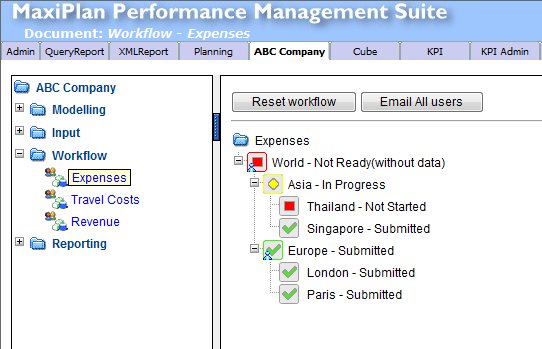
For each node displayed, the workflow shows the current status. The options for status will depend on whether the node is a base level (input) node or a parent (consolidated) node. The status conditions are:
Base Level (Input) Node
 |
Not Started. This indicates that the spreadsheet for this node has not yet had any data input changes made to it, and is waiting for the user who has been nominated as the owner to Save or Submit data. |
 |
In Progress. Indicates that the assigned owner has made changes to the data in the spreadsheet for this node and has saved the changes back to the server, BUT has not yet submitted the spreadsheet. |
 |
Rejected. This indicates that the spreadsheet has been submitted and subsequently rejected by the reviewer, and is awaiting further input from the owner of the spreadsheet. |
 |
Submitted. This indicates that the spreadsheet for this node has been submitted. The data for this spreadsheet is now locked and the owner can no longer save any further changes to the data, unless the submission is rejected by the reviewer, or the workflow status is reset by the project administrator |
Parent Level (Consolidated) Node without Reviewer
 |
Not Started. Indicates that all the child nodes that consolidate into this node are in a 'Not Started' state, i.e. no data has been saved or submitted for any of the nodes under this node. |
 |
In Progress. At least one or more of the child nodes that consolidate into this node have been either saved or submitted. |
 |
Submitted. Indicates that all the child nodes that consolidate into this node have been submitted and therefore this node has automatically been submitted to the next level. |
Parent Level (Consolidated) Node with Reviewer
 |
Not Started. Indicates that all nodes contributing to this node are in a Not Started state (none of the child spreadsheets that consolidate into this node has yet been saved or submitted). |
 |
In Progress. One or more spreadsheets that consolidate into this node have been either saved or submitted, but at least one child spreadsheet remains in a state of 'In Progress' or 'Not Started'. |
 |
Ready for Review. All child spreadsheets below this node have been submitted, and this consolidated node is now ready and available for review by its nominated reviewer. |
 |
Rejected. This consolidated node has been 'Rejected' or contains child nodes that have been rejected and are now awaiting further input/modification. |
 |
Submitted. This consolidated node has been reviewed and submitted to the next level (reviewer) in the hierarchy. |
Workflow Management Functions
Additional Functions are available to the Project Owner. These are activated by clicking the appropriate button at the top of the Workflow screen for any model. The function of these buttons is described below:
Reset Workflow
Clicking the  button allows the project owner to reset the workflow status for all nodes or for selected nodes to be reset to a 'Not Started' status. By default when workflow is created by the deployment function, all nodes are set to a 'Not Started'. However it may be necessary for the project owner to reset a node that has been accidentally saved or submitted, or reset all nodes in preparation for another round of submissions. button allows the project owner to reset the workflow status for all nodes or for selected nodes to be reset to a 'Not Started' status. By default when workflow is created by the deployment function, all nodes are set to a 'Not Started'. However it may be necessary for the project owner to reset a node that has been accidentally saved or submitted, or reset all nodes in preparation for another round of submissions.
When the is selected a popup window will be displayed:
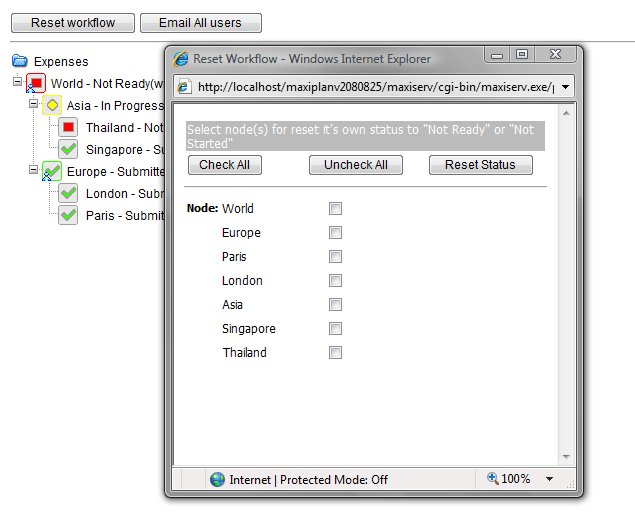
Any of the nodes can be marked for reset, checking the box next to the node name in the popup display. The  and and  buttons can be used to either check all nodes, or uncheck all nodes. buttons can be used to either check all nodes, or uncheck all nodes.
Clicking the  button will force the status of the select nodes to 'Not Started'. button will force the status of the select nodes to 'Not Started'.
Note that this only affects the workflow status and does not affect any of the data held in each spreadsheet.
Email All Users
Clicking the  button opens an email addressed to all users specified in the deployment. This is a useful facility to enable a project administrator to advise all users that a cycle of the budget has commenced. This function will use your currently defined email client, opening a new email for composition with emails addresses already inserted in the To list. button opens an email addressed to all users specified in the deployment. This is a useful facility to enable a project administrator to advise all users that a cycle of the budget has commenced. This function will use your currently defined email client, opening a new email for composition with emails addresses already inserted in the To list.
Workflow Extension
The Workflow Extension option will only appear if your model has more than one dimension defined. Workfow is always associated with a single dimension, but if there are additional dimensions, the workflow can be extended to a second dimension as a subset of the workflow dimension.
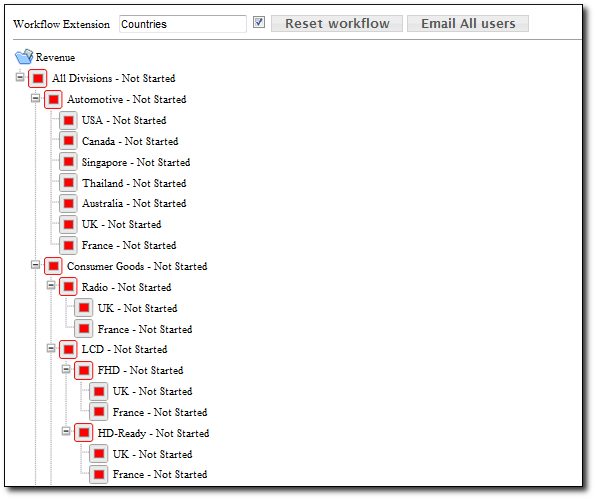
For example, we may have a 'Division' dimension defined as our primary deployment dimension, but we also have a second dimension 'Countries'. Without Workflow Extension, each 'Division' would be treated as a single submission, so submitting data for one 'Country' would also submit the data for all other 'Countries' for that same 'Division'. This is not really desirable if say we wished to submit 'Singapore' data, but not 'Thailand'.
However by using Workflow Extension, we can break our 'Division' down into separate 'Countries' worksheets, allowing each 'Country' to be treated as a separate submission. The owner of each 'Division' would then be able to submit each 'Country' spreadsheet within his/her 'Division' separately. Similarly they would be able to delegate an individual 'Countries' spreadsheet to another user for input.
The Workfow Extension option will appear automatically if the model has more than one dimension defined.
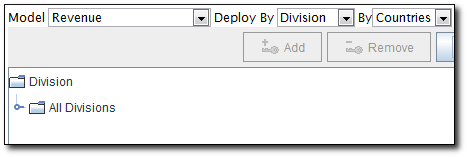
To extend the workflow, go to the Deployment screen, select the desired dimension from the drop down list of dimensions. The dimension members of the selected dimension will appear as a subset of the deployment dimension in the workfow display.
Note that if combinations have been defined during the deployment setup, only valid combinations will be displayed in the workflow.
See also
| 


 Page URL: